


Introduction
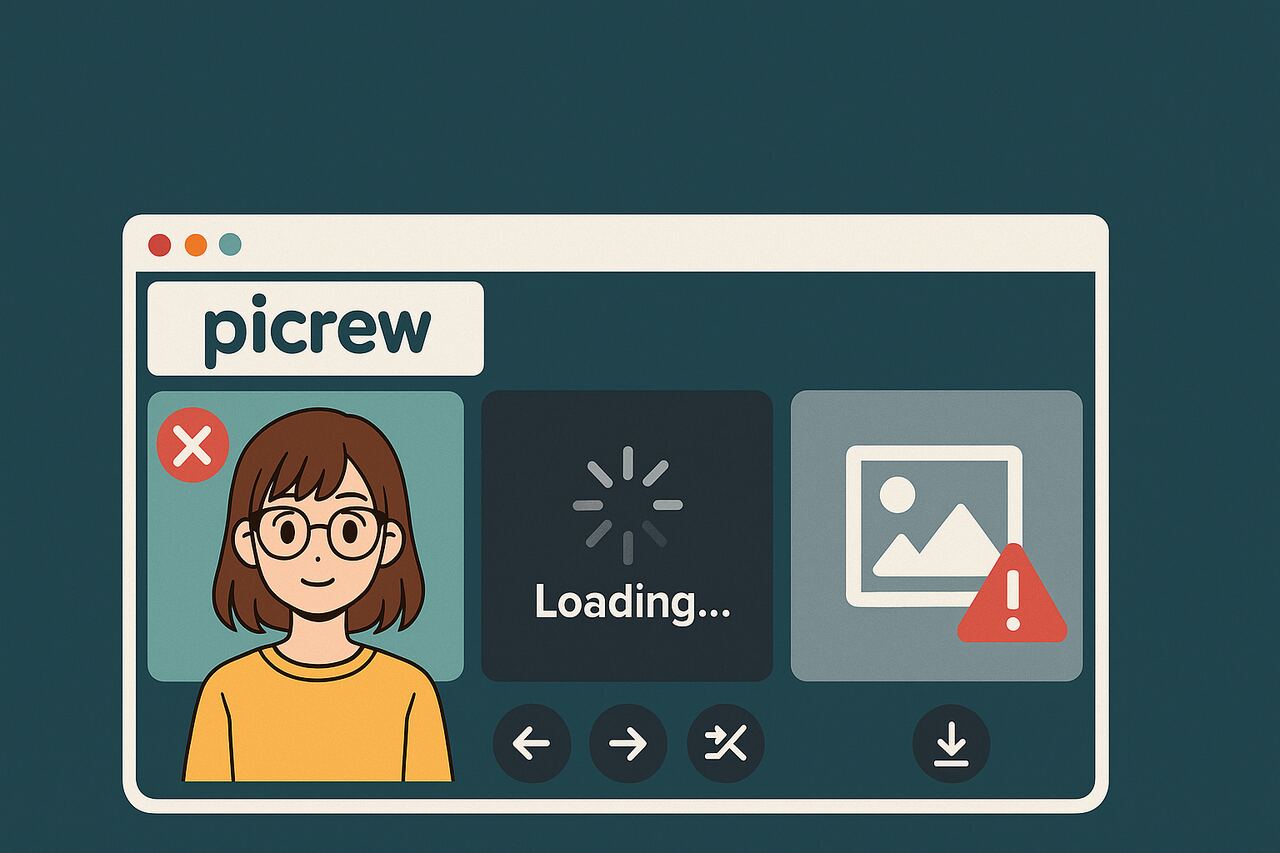
Picrew, a browser-based avatar generator and image maker tool, allows users to play with interactive character creators or build their own. However, many users face issues such as blank Play screens, frozen Creator tools, or failed preview images—especially when using VPNs, mobile apps, or certain browsers. These issues are often caused by overlooked browser settings, incorrect image uploads, or server-side limitations. Understanding the relationship between platform-specific behavior, image upload rules, and device-based compatibility is critical for resolving errors effectively. This article explores each issue with semantic depth, explains how to fix them, and ensures your Picrew usage remains smooth and productive.
What causes Picrew to stop working?
Picrew often stops working due to improper image uploads, network or browser restrictions, or site-wide server limitations. Users encounter errors because of content blockers, VPNs, cache-related bugs, or incorrect file formats within the Creator tool.
Why does the Play screen load slowly or fail to open?
A slow or broken Play screen on Picrew usually results from blocked scripts or delayed server response. VPNs, proxies, and browser content filters can interrupt the Play screen’s connection to external assets like Item Images, causing indefinite loading or a white screen.
- Blocked JavaScript assets: Essential Picrew scripts are often flagged by aggressive ad blockers.
- Network throttling via VPNs: VPN rerouting slows response times or blocks Japan-based servers.
- Heavy site traffic: When servers experience high load (“server heavy access”), Play screen access becomes intermittent.
- Browser cache corruption: Old cache can prevent the latest image data from loading properly.
What browser or app issues prevent the Creator screen from working properly?
The Creator screen may fail to work properly due to several browser or app-related issues, including outdated software versions, unsupported or disabled JavaScript, and heavy ad-blockers or privacy extensions interfering with scripts. Slow internet connectivity or cache overload can also prevent assets from loading correctly, while outdated graphics drivers or lack of hardware acceleration sometimes cause rendering problems. On mobile apps, glitches often arise from corrupted app data or missing updates, and in some cases, low device memory can disrupt performance. Ensuring your browser or app is updated, clearing cache, disabling conflicting extensions, and using a stable connection usually resolves these issues.
- Unsupported in-app browsers block essential scripts or local storage features needed for Creator previews.
- Outdated browser versions fail to render PNG layers or transparency in image creators.
- JavaScript-disabled environments prevent interactive layers and menu elements from loading.
- Incorrect device pixel ratio scaling disrupts preview rendering on high-DPI mobile screens.
Why does Picrew show a 403 error or not load at all?
A 403 error on Picrew indicates the server is actively rejecting the request due to permission or network rules—commonly caused by VPN, proxy, or firewall interference.
- IP geo-blocking: Accessing Picrew via countries or networks outside its preferred regions triggers security blocks.
- VPN tunneling: Some VPN IPs get flagged for automated access, causing denied requests.
- Misconfigured proxies insert headers that Picrew flags as suspicious.
- Heavy access flags (high-frequency use) lead to temporary IP blacklisting or rate-limiting.
How can you fix Picrew loading errors?
If Picrew isn’t loading properly, you can usually fix the issue by refreshing the page, clearing your browser’s cache and cookies, or trying a different browser such as Chrome or Firefox. Make sure your internet connection is stable, disable any ad-blockers or extensions that might interfere, and check that JavaScript is enabled. If the problem persists, try using Picrew in incognito/private mode or on a different device. Sometimes the issue is server-side, so waiting and checking Picrew’s official Twitter or community forums for updates can also help.
How do disabling VPNs, proxies, or content blockers help?
Disabling VPNs and proxies removes the risk of IP rejections or tunneling-related delays. Content blockers often stop scripts and media that Picrew needs to function.
- VPN disablement restores native IP, reducing chances of 403 errors.
- Proxy header stripping prevents errors tied to malformed requests.
- Content blocker exceptions for Picrew scripts re-enable dynamic loading.
- DNS reset clears cached routing paths that may point to failed connections.
How do browser modes (incognito vs private) impact usage?
Using Incognito or Private Mode can temporarily resolve caching or cookie-based errors in Picrew.
- No cache interference allows fresh loading of assets.
- No conflicting extensions ensures unblocked script execution.
- Isolated sessions avoid credential or session mismatch errors.
- Private storage prevents bad local saves from breaking Creator previews.
How do clearing cache or using a different browser help?
Switching browsers or clearing cache reloads Picrew’s components from the server, often resolving asset-loading errors.
- Cache removal forces the browser to fetch fresh image assets and templates.
- Alternate browsers offer better compatibility (e.g., Chrome > Safari).
- Clearing localStorage resets Creator previews and menu elements.
- Cookies wipe clears authentication or session history errors.
What mobile app steps can resolve image maker errors?
Fixes on mobile often involve browser switching or disabling in-app view modes.
- Open Picrew in native browser (Safari/Chrome), not embedded app browsers.
- Clear mobile browser cache/data from device settings.
- Disable battery/data saver to ensure full image asset downloads.
- Switch from mobile data to Wi-Fi if SIM-based connections block image calls.
What if the Creator screen or previews are broken?
If the Creator screen or previews are broken, it usually means there’s a temporary glitch with the editor or your browser. Start by refreshing the page, clearing your cache, or switching to a different browser/device to see if the issue persists. Make sure your internet connection is stable and that any extensions or ad-blockers aren’t interfering. If the problem continues, try disabling heavy background apps, updating your browser, or checking the platform’s official status page. In most cases, these steps fix preview issues, but if not, reaching out to support with screenshots will help them identify and resolve the problem quickly.
How do properly uploading Item Images and Icons resolve preview issues?
Properly uploaded Item Images and Icons appear instantly in previews. Incorrect uploads or mismatched sizes prevent proper rendering.
- Item Icons (thumbnail representations) must match required formats (usually square PNG).
- Item Images (actual visual layers) must align with Picrew’s layering rules.
- Failed uploads create empty preview boxes or crash Creator mode.
- Consistent naming of layers ensures loading order matches expectations.
How does maintaining the correct image size and layer order help?
Correct sizing and layering directly affect visual output and usability.
- 600×600 px standard for most avatars ensures proper scaling.
- Z-ordering (layer order) prevents characters from appearing inside out.
- Bottom-up layering logic builds characters from background to foreground.
- Size mismatches (e.g., 640×480) cause shift or cropping errors.
Which file format and export settings work best?
PNG is the best file format due to its transparency support and consistent rendering.
- PNG with transparent background maintains element independence.
- RGB mode (not CMYK) ensures browser compatibility.
- No compression retains clarity in final previews.
- Export from vector tool with same dimensions for pixel-perfect accuracy.
Table: Image Upload Best Practices for Picrew Creator
| Attribute | Recommended Setting |
| Item Image Format | PNG (transparent background) |
| Image Dimensions | 600 × 600 px or project-specific size |
| Layer Order | Bottom-up (background to foreground) |
| Color Mode | RGB |
| Icon Thumbnail Format | Square PNG, smaller file size preferred |
Picrew Creator relies on consistent image handling logic. Following upload standards improves loading speed, preview rendering, and platform stability.
When the issue persists—what’s next?
Users who experience ongoing issues despite browser and upload fixes should consider site-wide limitations or escalate via Picrew’s support channels.
How do site-wide server problems affect Picrew?
Site-wide server issues result in global outages or degraded performance during peak hours.
- “Server heavy access” messages indicate overloaded rendering services.
- DNS-level faults affect access from specific regions.
- Picrew infrastructure limits reject too many simultaneous creators.
- Error propagation across asset servers causes widespread preview failures.
When and how should you contact Picrew support?
If issues persist beyond user control, Picrew support should be contacted through the inquiry form.
- Use Picrew’s inquiry form at support picrew me.
- Provide browser/device information for faster diagnosis.
- Attach sample uploads or screenshots of errors.
- Check Picrew’s official Twitter or notices for outage reports before contacting.
Conclusion
Picrew’s avatar creation platform requires optimal image formats, stable network conditions, and correct browser settings to function smoothly. Users often encounter errors due to VPNs, proxy interference, incorrect uploads, or browser cache issues. Applying precise fixes—like using transparent PNGs, disabling content blockers, or switching from app browsers—restores usability. For persistent errors, checking for server-wide problems or reaching out to support ensures long-term resolution. For more informative articles related to Picrew Guides you can visit Picrew Guides Category of our Blog.
Picrew Play screen issues usually result from blocked scripts, VPN interference, or high server load. Disabling VPNs and clearing browser cache typically fixes this.
Yes. Incognito mode avoids extension interference and cache issues, offering a clean session that often resolves Picrew loading errors.
VPNs or proxies can mask IPs, trigger automated defenses, or insert headers Picrew deems suspicious, leading to a 403 error.
Item Images are visible layer components in characters, while Item Icons represent thumbnails in selection menus. Both must meet format and size standards.
Incorrect layer order, mismatched image size, or transparency errors cause images to appear off-center or invisible during previews.
Use PNG format, 600×600 px size, RGB color mode, and maintain transparent backgrounds. Avoid compression or scaling during export.
Switch when errors persist in one browser. Try Chrome or Firefox for best compatibility, and avoid in-app browsers like those in Instagram.
Contact Picrew via their official inquiry form at support picrew me, and provide screenshots and full device/browser info.
