


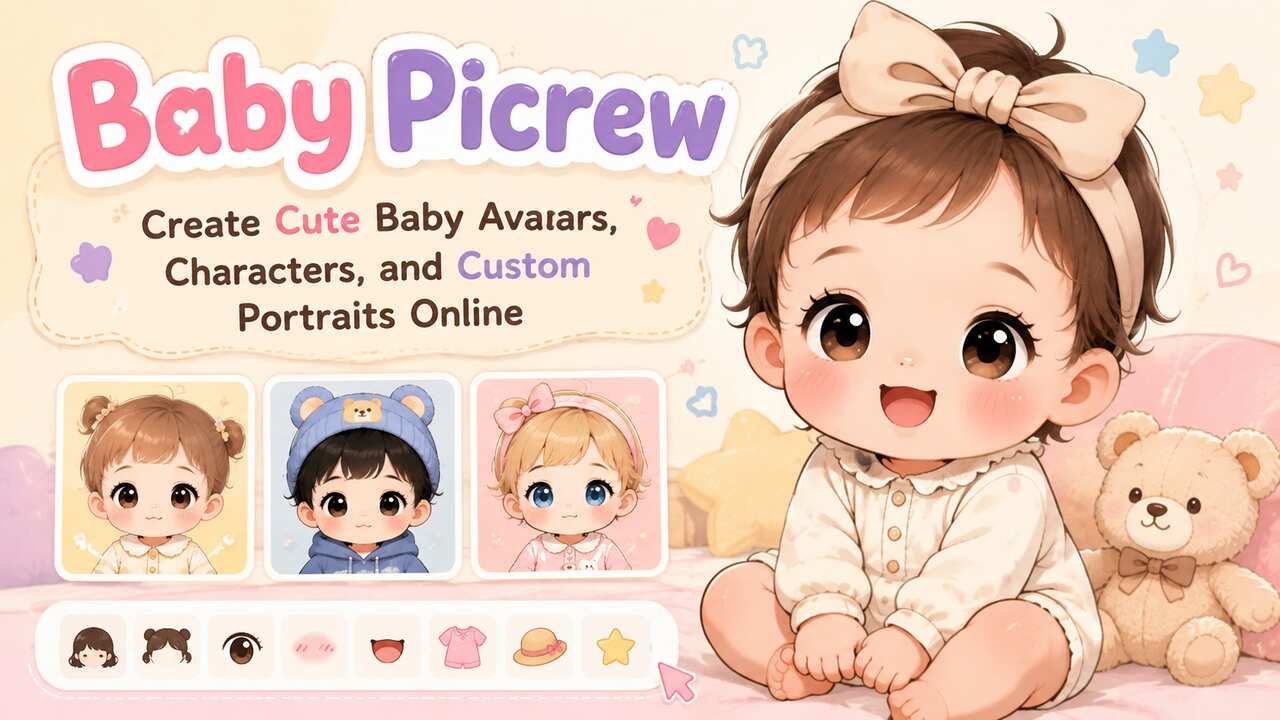


Baby Picrew is a popular search term for people looking to create a cute, customizable baby-style avatar using Picrew image makers. Instead of drawing a character from scratch, users can combine illustrated features such as hairstyles, eyes, facial expressions, clothing, accessories, and backgrounds. The exact customization choices depend on the individual image maker and its creator.
Picrew works as a platform rather than a single character generator. Different artists publish their own image makers, so one baby Picrew may feature a soft pastel newborn style while another focuses on cartoon children, family characters, or chibi designs. Understanding how to find, customize, save, and appropriately use these images makes it much easier to get the result you want.
Find a Baby Picrew That Matches Your Preferred Style
Start by looking for a Picrew image maker whose artwork and customization options fit the type of baby character you want to create. Picrew hosts image makers made by different creators, meaning there is no single official “baby Picrew” design. The available makers can vary considerably in illustration style, features, clothing, and intended character age.
Search terms can make finding an appropriate maker easier. Along with “baby Picrew,” try combinations such as “baby maker Picrew,” “child Picrew,” “cute baby avatar,” “chibi baby maker,” “family Picrew,” or similar phrases. Because individual makers can be added, changed, or removed over time, current search results may differ from older recommendations.
Before starting, look at the example image and available selections. A useful baby character maker should ideally provide enough options to create meaningful differences between characters. Hair, eyes, expressions, clothing, accessories, and backgrounds are particularly useful categories.
Picrew itself describes its service as an image-making platform where users can combine different parts to create characters and other images. Its image makers generally use either a customizable Dress-Up Maker format or a Random Maker format.
| Baby Picrew feature | Useful customization options | Effect on the avatar |
|---|---|---|
| Hair | Style, color, bangs, curls | Establishes the character’s overall look |
| Face | Eyes, brows, mouth, expression | Changes personality and mood |
| Clothing | Onesies, shirts, dresses, costumes | Creates a theme or visual identity |
| Accessories | Hats, bows, glasses, toys | Adds distinctive details |
| Background | Solid colors, patterns, scenery | Completes the composition |
| Colors | Hair, clothing, accessories | Helps coordinate the finished design |
Open the Image Maker and Review Its Controls
Open your chosen baby Picrew and familiarize yourself with its controls before making detailed selections. A typical Dress-Up Maker presents groups of interchangeable illustrated items. Selecting a category lets you replace one visual component without rebuilding the entire character.
Picrew’s Dress-Up Makers can include item selection, color selection, and controller functions. Item selection changes the illustrated component, while color controls let you switch among variations provided by the creator. Some parts can also be repositioned or resized when the creator has enabled those controls.
Not every baby maker will provide every function. One creator might offer several hair colors but fixed positioning, while another could allow users to move accessories or adjust facial features. The options reflect how that particular artist constructed the maker.
Picrew also distinguishes Dress-Up Makers from Random Makers. Dress-Up Makers emphasize manual selection, whereas Random Makers generate combinations automatically. For detailed baby avatars, a Dress-Up Maker will generally give you greater control when the desired maker supports enough individual options.
Choose the Baby’s Facial Features and Expression
Build the face first because facial features usually determine most of the character’s personality. Select the available eyes, eyebrows, mouth, and other face options until the combination communicates the expression you want.
For a cheerful baby avatar, large eyes and a smiling mouth can create an energetic appearance. Smaller or sleepy-looking eyes can produce a calmer character. A surprised mouth, rosy cheeks, freckles, or similar details can create a more playful illustration when the maker includes them.
The available features are entirely dependent on the artist. Picrew image makers are constructed from parts containing selectable items. Picrew’s creator documentation uses components such as eyes, mouths, and hair as examples of the parts that can form a character maker.
Avoid assuming that every maker provides the same representation options. Some offer extensive selections, while intentionally simple makers may contain only a few choices. If you cannot create the appearance you want, choosing another baby Picrew is usually more effective than trying to force an unsuitable maker to fit your idea.
Customize the Hair and Color Combination
Select a hairstyle that complements the face and intended character design. Depending on the maker, baby hairstyles might include very short hair, curls, bangs, pigtails, ponytails, fluffy styles, or stylized cartoon hair.
Next, check whether the selected hair part has color variations. Picrew’s interface displays color selection when the creator has configured multiple colors for that particular part. If no variations were registered, the color selection option will not appear.
Coordinate hair color with the other visual elements rather than treating each category independently. Dark hair can contrast strongly against a light pastel background, while lighter hair may work well with darker clothing or accessories. Fantasy-colored hair can suit a fictional or chibi-style character when those options are available.
Some makers divide hairstyles into multiple visual layers. Picrew supports layered components, allowing creators to arrange elements such as front and back hair around the character’s body. Although players do not normally need to manage the underlying layers, this system explains why some Picrews can produce surprisingly detailed hairstyles.
Select Baby Clothing That Fits the Character
Choose clothing after establishing the face and hair because these features provide a visual foundation for the outfit. Baby-oriented character makers may offer onesies, pajamas, sweaters, shirts, dresses, overalls, costumes, bibs, or themed clothing.
Consider the purpose of your finished character. A cozy outfit works well for a casual baby avatar, while themed clothing can make the image suitable for a fictional character, family character concept, seasonal profile picture, or creative project.
Color coordination makes even a simple avatar feel more intentional. For example, a pale blue outfit can complement a cream background, while brighter colors can create a playful cartoon appearance. When clothing has selectable colors, compare several variations before settling on the final combination.
Do not expect identical clothing categories across different makers. Picrew creators determine which parts, items, layers, and colors their image makers contain. The platform provides the system, but the artist determines the actual creative choices available to players.
Add Hats, Toys, and Other Accessories
Use accessories to distinguish your baby Picrew from the maker’s default appearance. Accessories can provide small details that communicate personality without changing the fundamental character design.
Depending on the creator, options could include hats, bows, headbands, glasses, pacifiers, toys, blankets, decorative objects, or fantasy-themed additions. Some makers may provide only a few accessories, while highly detailed character creators can contain numerous selections.
Avoid adding every available decoration simply because it exists. One or two coordinated details often produce a cleaner avatar. A colorful hat might already function as the focal point, for example, making additional large accessories unnecessary.
Controllers can offer extra flexibility when enabled. Picrew supports functions that can move parts horizontally or vertically, adjust spacing, rotate components, and change their scale within limits configured by the creator. These tools can be particularly useful for positioning decorative items correctly.
Adjust the Background and Final Color Palette
Finish the visual composition by choosing a background that supports the baby character rather than distracting from it. Simple backgrounds are often effective because the avatar remains the primary focus.
Pastel pink, blue, yellow, lavender, mint, and cream can complement soft baby illustrations. Stronger colors can work better with bold cartoon designs. Patterned backgrounds add energy, while plain backgrounds generally create a cleaner profile-picture appearance.
Check the relationship between the background and the character’s outline. Similar colors can cause clothing or hair to blend into the background. Contrasting values usually improve visibility, particularly when the finished image will appear as a small social profile icon.
The overall style should remain consistent. A soft face, pastel outfit, gentle accessories, and complementary background naturally reinforce one another. Conversely, bright clothing combined with a high-contrast background can create a deliberately energetic result.
Use Randomization to Discover New Baby Designs
Try the random controls when you want inspiration instead of designing every feature manually. Depending on the creator’s settings, a Dress-Up Maker can provide “All Random” or “Items Random” functions.
Picrew explains that All Random can change items, colors, and controller settings, whereas Items Random changes items and colors without altering controller settings. Creators can choose whether these buttons appear in their makers.
Randomization is particularly useful when you are uncertain about color combinations. Generate several characters and note which combinations work well. You can then manually change individual components to refine the randomly generated starting point.
Be aware that randomizing or resetting can replace the current configuration. Picrew states that the previous configuration cannot be restored after using All Random, Items Random, or Reset All. If you already like a design, finish it before experimenting extensively with reset functions.
| Control | Main purpose | Best use |
|---|---|---|
| Item selection | Choose individual features | Detailed customization |
| Color selection | Change available colors | Matching the character palette |
| Controller | Adjust supported parts | Fine positioning |
| All Random | Randomize broad settings | Generating unexpected designs |
| Items Random | Randomize items and colors | Quick inspiration |
| Reset All | Return to defaults | Starting the design again |
| Finish | Complete the image | Preparing the final result |
Finish and Save Your Baby Picrew
Review the entire avatar before pressing the Finish button. Check the face, hairstyle, clothing, accessories, colors, and background together rather than evaluating each component separately.
When you are satisfied, select Finish. Picrew’s official instructions state that completed Dress-Up Maker images can be downloaded and shared on social media, subject to the platform’s rules and the individual creator’s permissions.
It can be useful to create several versions before deciding on your favorite. For example, keep the face and hairstyle consistent while changing the clothing and background. This approach produces variations of the same character instead of completely unrelated designs.
If the character represents an original fictional baby or younger version of an original character, record the important visual choices separately. Hair color, eye design, clothing palette, accessories, and background theme can become a reference for recreating a consistent character later.
Check the Creator’s Usage Permissions Before Sharing
Read the image maker’s description and permitted-use information before using a baby Picrew outside the platform. The artwork belongs to the maker’s creator, and different creators can establish different permitted uses.
Picrew describes several permission categories, including personal, non-commercial, commercial, and processing permissions. The creator chooses the applicable scope, so permission available for one image maker should not be assumed to apply to another.
Personal uses can include purposes such as social media icons, headers, personal websites or blogs, and personal printing when permitted under the relevant scope. Commercial activity is treated differently, so an image that is fine for a personal profile should not automatically be treated as available for a business, merchandise, advertising, or another money-making activity.
Picrew also prohibits redistribution of generated images as-is or modified and prohibits misleading others into thinking a Picrew image was created by someone other than the actual image-maker creator. Always check the current maker description and Picrew rules rather than relying on assumptions about generated-avatar ownership.
Create Your Own Baby Picrew Image Maker
Create an original baby-themed image maker if you are an illustrator who wants complete control over the available character designs. Picrew allows creators to build image makers from their own illustrations without requiring programming knowledge.
The basic creation process involves registering an image maker, configuring parts, adding layers and colors, adding selectable items, uploading the corresponding artwork, arranging layers, and publishing the finished maker. Picrew recommends beginning with a relatively simple setup because additional details can be added later.
A baby character maker could separate the design into face, eyes, mouth, hair, clothing, headwear, accessories, and background categories. Each category could then contain multiple choices. For instance, the hair category might contain several styles with multiple color options, while the clothing category could contain onesies, pajamas, overalls, and other outfits.
Picrew currently provides 1:1 and 9:16 canvas options for creators. Its documentation specifies 600 × 600 pixels for the 1:1 image-maker canvas and 540 × 960 pixels for 9:16. Item images use PNG, while image-maker icons can use PNG or JPG.
Prepare Artwork for a Custom Baby Picrew
Draw each interchangeable component so that it aligns correctly when combined with the other components. Consistent positioning is essential because character makers construct the final image by displaying multiple illustrated items together.
Start with a base character and establish fixed reference positions for important features. Eyes should align consistently with the face, hairstyles should fit around the head, and clothing should align with the body. Accessories need similar planning if users will be able to switch between multiple versions.
Layers become important when an object needs to appear both behind and in front of another component. Picrew’s documentation gives hair as an example: front hair can sit in front of the body while back hair appears behind it, with both layers associated with the same selectable hairstyle.
Color variations also increase the amount of artwork required. Picrew explains that the required item images depend on the number of layers and colors. More customization therefore gives players greater creative freedom but also increases the creator’s workload.
Publish the Baby Maker With Clear Information
Give your image maker a straightforward name that communicates its purpose. A title such as “Cute Baby Maker,” “Pastel Baby Creator,” or another descriptive name helps users understand what they can create.
Add a useful description and relevant tags. Picrew’s creator settings support an image-maker name, description, tags, permission scope, icon, maker type, random-button settings, canvas size, and publication settings.
Set usage permissions carefully. Decide whether generated images may be used personally, non-commercially, commercially, or processed according to the options Picrew provides. Clear rules help users understand where and how they may share their creations.
Finally, test different combinations before publication. Hairstyles should not unexpectedly cover facial features, accessories should appear in sensible positions, and color variants should work across the available items. A smaller collection of polished choices usually creates a better experience than a large collection with alignment or layering problems.
Conclusion
Baby Picrew offers an accessible way to create illustrated baby-style avatars by combining artwork supplied by individual Picrew creators. The best results come from choosing a maker that suits your preferred style, building the face and hair first, coordinating clothing and accessories, selecting a complementary background, and reviewing the complete character before finishing it.
Picrew’s strength is variety. Each image maker can provide different artwork, colors, controls, and customization possibilities, allowing users to explore many interpretations of a baby or child-style character. Just remember that the creator determines the artwork and permissions. Check the individual maker’s usage rules before using a finished baby Picrew beyond ordinary play or sharing.
FAQ’s
How do I make a baby on Picrew?
Find a baby or child-style image maker on Picrew, open it, and select the available face, hair, clothing, accessories, colors, and background. Press Finish when the character is complete.
Is baby Picrew a separate app?
Not generally. “Baby Picrew” is commonly used as a search phrase for baby-themed or child-style image makers available through Picrew rather than the name of one universal baby-avatar tool. Picrew itself hosts many independently created image makers.
Can I make a random baby Picrew?
Yes, when the selected image maker provides randomization. Picrew supports Random Makers as well as random controls in compatible Dress-Up Makers, although individual creators decide which features are available.
Can I use a baby Picrew as my profile picture?
Picrew states that personal-use permissions can cover uses such as social media icons, but you should check the specific image maker’s permitted-use settings and creator instructions before using the image.
Can I use baby Picrew images commercially?
Only when the applicable permissions allow your intended use. Picrew provides creators with usage-scope settings, and commercial use is treated separately from personal and non-commercial use. Check the individual maker before using an image for business purposes.
Can I create my own baby Picrew?
Yes. Artists can create an image maker using their own illustrations through Picrew Creator. The process includes creating parts and items, configuring layers and colors, uploading artwork, setting permissions, and publishing the image maker.


